PDF Jumper & Document Reader
- 3.7
- Rating
- 500.00K
- Installs
- Free
- Price
 Analysis by App-foxy
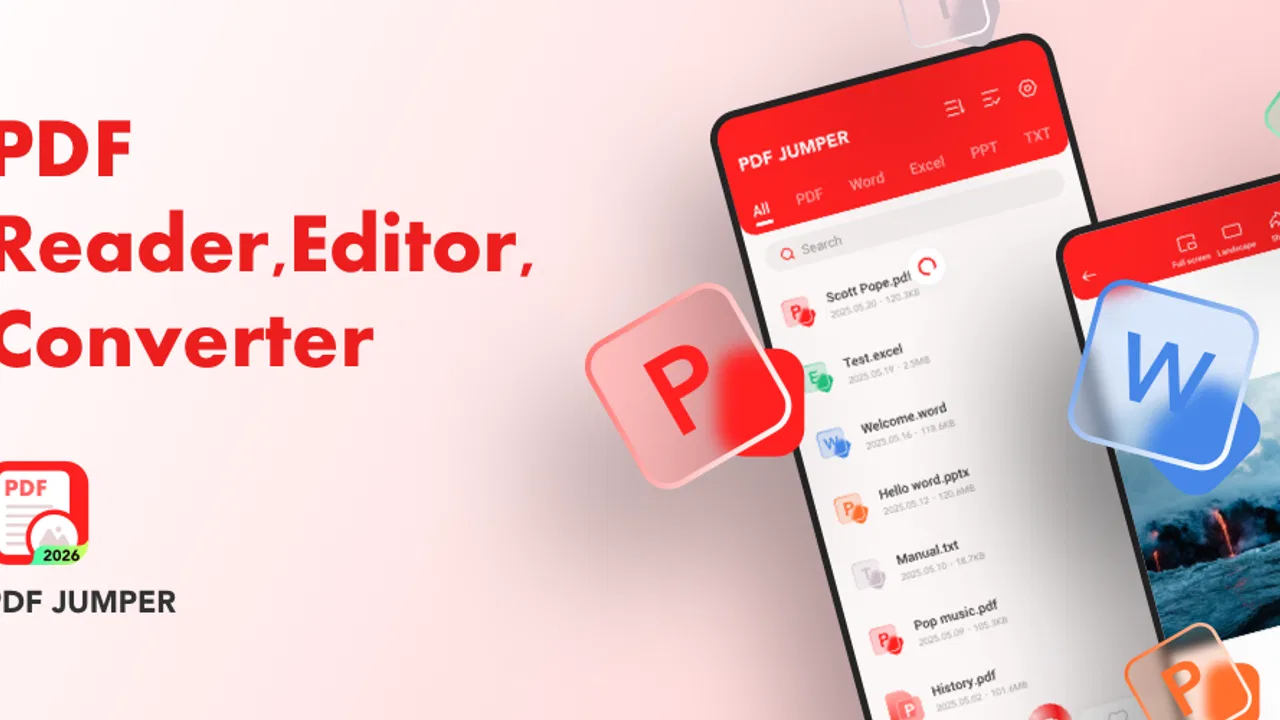
I spent time with PDF Jumper & Document Reader as a practical file viewer rather than treating it like a full office suite. That distinction matters. Its purpose is straightforward: open PDF, Excel, and DOCX files with as little clutter as possible. For someone who mainly needs to check a document, read a report, or glance at a spreadsheet on a phone, that focused approach can be refreshing.
The app sits in the productivity category and is made by Vialle. It is free, rated for Everyone, and currently listed as version 1.1.1 for devices running Android 8.0 or later. Its average score is 3.7 from around 1.4 thousand ratings, while its reach has passed 500 thousand installs. Those figures suggest a useful but not universally loved tool, which matches my experience: the viewer is easy to understand, but its value depends heavily on whether you want to read files or actively edit them.
How I use it for everyday document checking
My baseline workflow is simple. I open the app, locate the file I need, and use it as a temporary reading desk. A PDF is usually the easiest case: it is the format where a compact viewer makes the most sense because the document is already laid out and I only need to inspect its pages. DOCX files are useful when I receive a text document and want to read it without opening a larger office application. Excel files are handy when I need to check values or scan a table away from my computer.
You May Also Like

 Blood Strike: 2.5 Anniversary
Blood Strike’s Loadouts Turn Every Drop Into a Tactical Gamble
A close look at Blood Strike’s custom loadouts: how fast access to signature weapons reshapes its battle royale rhythm, rewards preparation, and narrows the gap between fights.

 Pandora - Music & Podcasts
Pandora’s Music Is Easy to Start, but Harder to Recover
Pandora’s strength is its low-effort path from a seed to a station. Its weak spot is how much confidence it asks you to place in connection, setup, and quiet recovery.

 8 Ball Pool
 Is Built on Rivalries, Rematches, and Routine
A close look at the rivalries, rematches, shared routines, and unanswered safety questions that turn a quick pool match into a persistent mobile community.

 Samsung Music
’s Quiet Strength Is Playing What You Already Own
Its reach comes less from spectacle than from dependable access to a personal library. That simplicity is both the app’s strongest retention engine and its ceiling.

 AccuWeather: Weather Radar
AccuWeather Review: A Quick, Clear Forecast for Everyday Decisions
For everyday plans, the best forecast is the one you can understand quickly. AccuWeather makes rain timing, radar, and local conditions easy to act on, with a few trade-offs.

 Hill Climb Racing
Why Hill Climb Racing Still Turns Crashes Into One More Run
A tiny car, a bumpy hill and one more upgrade: Hill Climb Racing keeps resurfacing because its simple chaos makes every near-miss feel personal.
More From Our News Desk
View All News


This is especially convenient in ordinary situations. Imagine receiving a meeting agenda as a PDF, a delivery document as a Word file, and a price sheet in Excel during the same afternoon. Instead of opening three heavyweight tools, I can use one place to inspect all three. I would still move to a dedicated editor when changes are required, but for quick verification, the compact design keeps the task focused.
The most useful habit is to decide what I need before opening a file. If the goal is simply “read this,” the app fits well. If the goal is “rewrite this paragraph,” “recalculate this workbook,” or “add comments,” I do not expect a viewer to replace an office suite. That small distinction prevents disappointment and makes the app feel more capable than it would if I judged it by editing standards.
I also found that the app works best as a second-step tool. I create or download a document elsewhere, then use this reader for a quick review before sending it on. That makes it valuable for checking whether a PDF exported correctly, whether a DOCX is readable on a smaller screen, or whether a spreadsheet contains the expected information. It is less about document creation and more about reducing the friction between receiving a file and understanding it.
What the compact approach gets right
A clean viewer has one important advantage over a full productivity suite: fewer distractions. Large office apps often bring editing controls, templates, accounts, collaboration panels, and other elements that I do not need when I am only checking a file. PDF Jumper & Document Reader is more appealing when I want to open something quickly and keep my attention on the content.
That simplicity also helps on a phone. A mobile screen is already a compromise for document work, so unnecessary controls can make reading harder. A focused interface leaves more room for the page or table itself. In my use, that makes short checks feel less tiring than opening a desktop-style application for the same job.
There is a practical trade-off, though. A compact viewer may not provide the same depth of navigation, editing, formatting, or cloud-connected workflow that people expect from established office products. I would recommend it to someone who regularly reads mixed file types, but not as the only document tool for a student, manager, or freelancer who must revise files throughout the day.
Settings and small habits worth checking
Before settling into a routine, I would spend a few minutes checking the app’s available settings and the way it handles file access on your device. Even when a viewer is simple, the surrounding Android file system can affect how quickly documents appear. Keeping frequently used files in an easy-to-reach folder can save more time than repeatedly searching through downloads, messaging attachments, and cloud folders.
I also recommend testing one representative file from each format you use. Do not judge the app only with a short PDF. Open a text-heavy DOCX and a spreadsheet with several columns, because those are the files most likely to expose whether the viewing experience suits your phone. This is a better personal test than relying on the general promise of multi-format support.
For PDFs, I pay attention to how comfortable the page is to read at the zoom level I naturally use. For DOCX files, I check whether headings, spacing, and page breaks remain understandable. For Excel files, I look at whether I can follow rows and columns without losing track of the information. These checks create a useful boundary: the app may be perfectly adequate for inspection even when it is not ideal for detailed document work.
Another good habit is to keep the original file untouched when reviewing important material. A viewer is safest when I treat it as a read-only checkpoint. If I need to make a correction, I return to the application that created the file, edit it there, and then open the revised copy again for confirmation. This two-stage workflow is slower than editing in place, but it reduces the chance of confusing an old version with a final one.
Because the app is free and rated for Everyone, it is easy to try on a family device or a spare phone without making the decision feel significant. I would still evaluate it on the actual device where I plan to work. Screen size, storage organization, and the way files arrive on that device can make a bigger difference than the app’s basic interface.
Faster patterns for repeat users
Experienced use is less about discovering a secret feature and more about removing repeated decisions. I would create a consistent routine: receive or download the file, open it in the reader, check the key page or section, and then return to the source app if action is needed. That pattern is particularly effective for invoices, schedules, forms, manuals, and reports that are read but rarely edited.
For recurring documents, I use the same inspection order every time. First I confirm that the file opens. Then I check the title or first page, move to the section that matters, and scan the end for missing pages or obvious layout problems. With a spreadsheet, I check the relevant columns before scrolling through the rows. This sounds basic, but it prevents the common mistake of assuming that a file is correct simply because it opened successfully.
A useful trick is to separate “content checking” from “presentation checking.” On the first pass, I look for the information I actually need. On the second, I check whether the document is readable on a phone. A PDF can contain the right text but still be awkward because of tiny type or wide tables. A DOCX can be complete while its page structure feels different from the desktop version. Treating those as separate checks gives me a clearer decision about whether the file is ready to share.
I would also avoid using the app as a storage strategy. A reader helps me view files, but I still organize important documents in the phone’s normal file system or the service where I keep them. That makes the workflow portable. If I later switch viewers, the documents remain easy to find. It also keeps the app’s role clear: it is the inspection layer, not necessarily the place where I manage my entire document archive.
When I am traveling, this distinction becomes more valuable. I may need to inspect a booking document, a work attachment, or a reference sheet with limited time and a small screen. A dedicated viewer is less intimidating than opening a full office environment. I can check the information I need, then close the file without turning a quick task into a broader editing session.
Where it compares well, and where alternatives win
Compared with a full office suite, this app’s strongest argument is focus. Office suites are better when I need to create, edit, format, calculate, collaborate, or move between advanced document tools. They also tend to be the safer choice for professional workflows where layout fidelity and editing controls are central. PDF Jumper & Document Reader makes more sense when those capabilities would only get in the way.
Compared with using separate apps for PDF, Word, and spreadsheet files, its appeal is convenience. One viewer can become a predictable stopping point for mixed attachments. That is useful for people who receive documents from many sources and do not want to remember which app handles each extension. The compromise is that a single compact viewer may not match the specialized strengths of a dedicated PDF reader or spreadsheet application.
Compared with a browser-based viewer, a mobile app can feel more direct for files already stored on the device. A browser is often better when documents live inside a web service or need to be shared through an online workflow. I would choose the browser in a cloud-first environment and this app when my task is simply to open local files without extra steps.
The right choice therefore depends on the question I ask. “Can I read this file now?” is a good question for this app. “Can I finish my document work here?” is a different question, and the answer is less convincing. That is not a flaw in a viewer; it is a reminder to match the tool to the job.
Limits that become clearer with serious use
The first limitation is the natural ceiling of a viewer. Reading is not editing, and opening an Excel file is not the same as working with formulas, filters, or carefully formatted sheets. If your day involves changing values or preparing documents for other people, you will probably need another application beside this one.
The second is that phone-based document reading always involves compromises. Wide spreadsheets can require repeated movement across the screen. Complex DOCX layouts may not feel as comfortable as they do on a larger display. PDFs designed for desktop viewing can be difficult regardless of which reader opens them. I see the app as a convenient checkpoint, not a replacement for a proper monitor.
I would also be cautious about making it the only tool for high-stakes review. For a casual report or personal reference file, it is a sensible option. For contracts, financial workbooks, forms that must be completed precisely, or documents where every layout detail matters, I would verify the final result in the software intended for that file type. The app can help me inspect the document, but inspection is not always enough.
Some users may also prefer a more established ecosystem with stronger integration into storage, sharing, editing, and collaboration. If your files already live inside a particular office platform, its official mobile app may reduce handoffs. This reader is better for independence and quick access than for a deeply connected team workflow.
The current version, 1.1.1, is a reasonable point at which to try the app for straightforward viewing, but I would keep expectations measured. The rating of 3.7 shows that the experience is not flawless for everyone. In my view, that makes it especially important to test your own common files instead of assuming that support for three formats guarantees an equally smooth experience with every document.
Who should install it
I think it is a good fit for people who receive PDFs, DOCX files, and Excel documents but usually only need to read them. Students checking handouts, workers reviewing attachments, families opening forms, and travelers carrying reference documents can all benefit from a focused viewer. It is also useful as a lightweight backup for anyone who already has an editing suite but wants a simpler way to inspect files.
I would skip it as a primary choice if your main requirement is document creation, spreadsheet analysis, annotation, collaboration, or reliable professional formatting. In those cases, a dedicated office or PDF application is likely to justify its extra complexity. Installing this reader alongside such a tool can still make sense, but replacing the specialist app with it would be a poor trade.
The app’s free price removes the biggest barrier to testing it, and its Everyone age rating makes it approachable for a broad audience. Still, “free” should not be confused with “complete.” Its value comes from saving attention during simple viewing tasks, not from offering every feature found in a larger productivity platform.
My verdict after building a repeatable workflow
PDF Jumper & Document Reader works best when I give it a narrow, well-defined role. I use it to open mixed documents, confirm that they are readable, find the information I need, and decide whether the file requires further work elsewhere. That role is modest, but it is genuinely useful, especially on a phone where a full office suite can feel excessive.
My strongest recommendation is to treat it as a fast reading layer rather than an all-purpose document office. Test a typical PDF, DOCX, and Excel file, organize your frequently accessed documents sensibly, and keep editing tasks in the tool designed for them. Those habits make the experience faster and also reveal quickly whether the app suits your particular files.
For me, the cleanest benefit is the reduction of friction between receiving a document and understanding it. The main weakness is equally clear: once understanding turns into editing or detailed analysis, I need another solution. If that boundary matches your routine, this free productivity app is worth trying. If you need a complete document workspace, choose a more specialized alternative and use this reader only as a convenient companion.
FAQs for PDF Jumper & Document Reader
01What is PDF Jumper & Document Reader used for?
PDF Jumper & Document Reader is designed for opening, reading, and navigating PDF documents on a mobile device. Its main appeal is quick access to different pages or sections, making it useful for ebooks, manuals, forms, study materials, and work documents. Before downloading, users should remember that it is primarily a viewing and navigation tool rather than a complete PDF editing suite.
02Can PDF Jumper & Document Reader open all PDF files?
The app should handle standard PDF documents, including text-based files and many documents containing images, tables, or multiple pages. However, compatibility can vary with damaged, password-protected, encrypted, or unusually formatted PDFs. During testing, users should also consider that very large files or documents with complex graphics may take longer to load and could require more available memory on older phones.
03Does PDF Jumper & Document Reader work offline?
A PDF reader generally allows documents already stored on the device to be opened without a constant internet connection, which is convenient for travel, school, or areas with limited connectivity. Internet access may still be needed for downloading files, cloud sharing, advertisements, updates, or certain external services. Check the app’s current permissions and store description before relying on it completely offline.
04Does the app include PDF editing, annotation, or document conversion tools?
PDF Jumper & Document Reader focuses mainly on reading and navigating documents. Depending on the version installed, it may offer basic actions such as searching text, zooming, sharing, or jumping to a page, but users should not automatically expect advanced editing, signing, highlighting, scanning, or Word conversion features. Anyone needing professional document editing should verify the available tools before downloading.
05Is PDF Jumper & Document Reader free and safe to download?
The application may be available as a free download, although free versions can include advertising, optional purchases, or feature limitations. For safety, download it only from the official Google Play Store or Apple App Store, review the developer name, ratings, recent comments, and requested permissions, and keep the app updated. Avoid unofficial APK files, particularly when handling private or work-related documents.
Pros
- Jumps quickly between pages
- bookmarks
- and document sections.
- Supports common PDF files for convenient reading on mobile devices.
- Simple interface makes basic document navigation easy to understand.
- Useful for reviewing manuals
- forms
- reports
- and other lengthy files.
- Can reduce scrolling when searching through large documents.
Cons
- Advanced PDF editing and annotation tools may be limited.
- Large or image-heavy files can take longer to open.
- Some features may require in-app purchases or display advertising.
- Text extraction may be unreliable in scanned or poorly formatted PDFs.
- Privacy permissions should be checked before opening sensitive documents.

PDF Jumper & Document Reader
Gallery